To get started with Keystroke Lock for Android, you must download the app, activate the app by logging in, then enabling and using the keyboard. These steps are detailed below.
Download the app
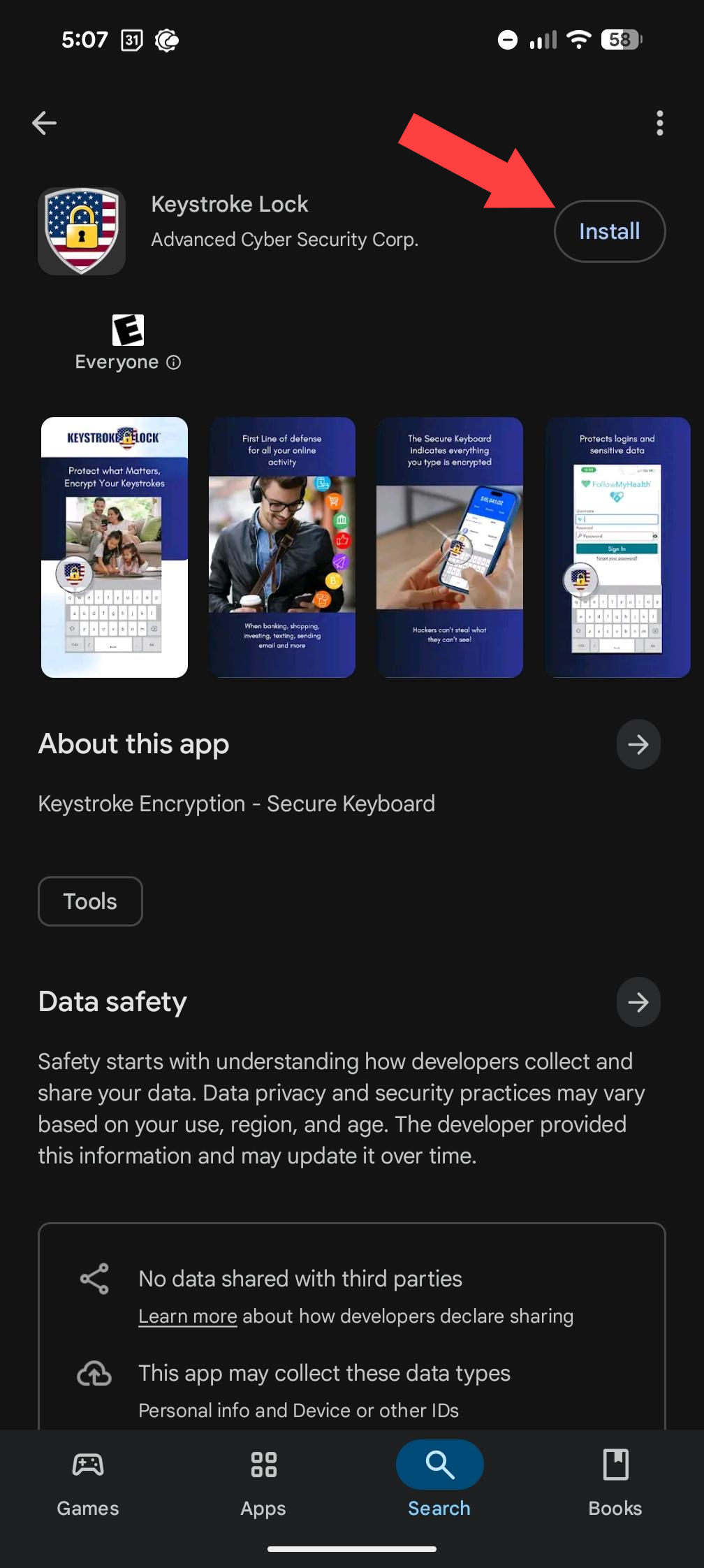
On your Android mobile device, search for Keystroke Lock in the Play Store or use this link: Keystroke Lock on the Play Store
Click on Install
Activate with your account
Once the app has finished installing, you can click Open to open the app or open the app like you would any other app.
Once you are in the app, all you will see is a login screen. Login with the account you created during purchase, which will activate the app.
Activation Help
If you are having an issue activating with your account, please see: Activation Help
Enable the keyboard
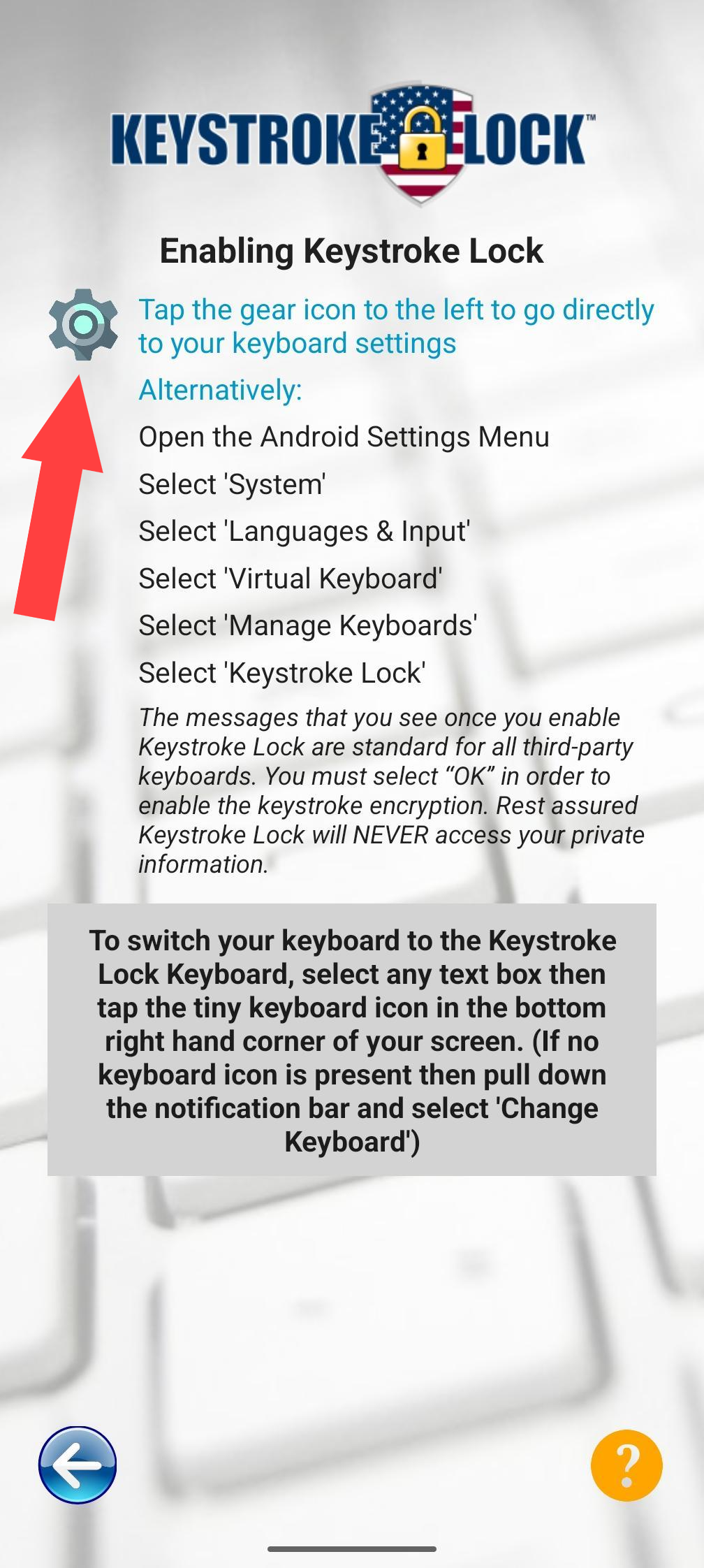
After you activate by logging in with your account, you will see a screen with instructions on how to enable the Keystroke Lock keyboard.
Following the instructions, click on the gear icon:
This will bring you to your keyboard settings where you must click the toggle to enable Keystroke Lock:
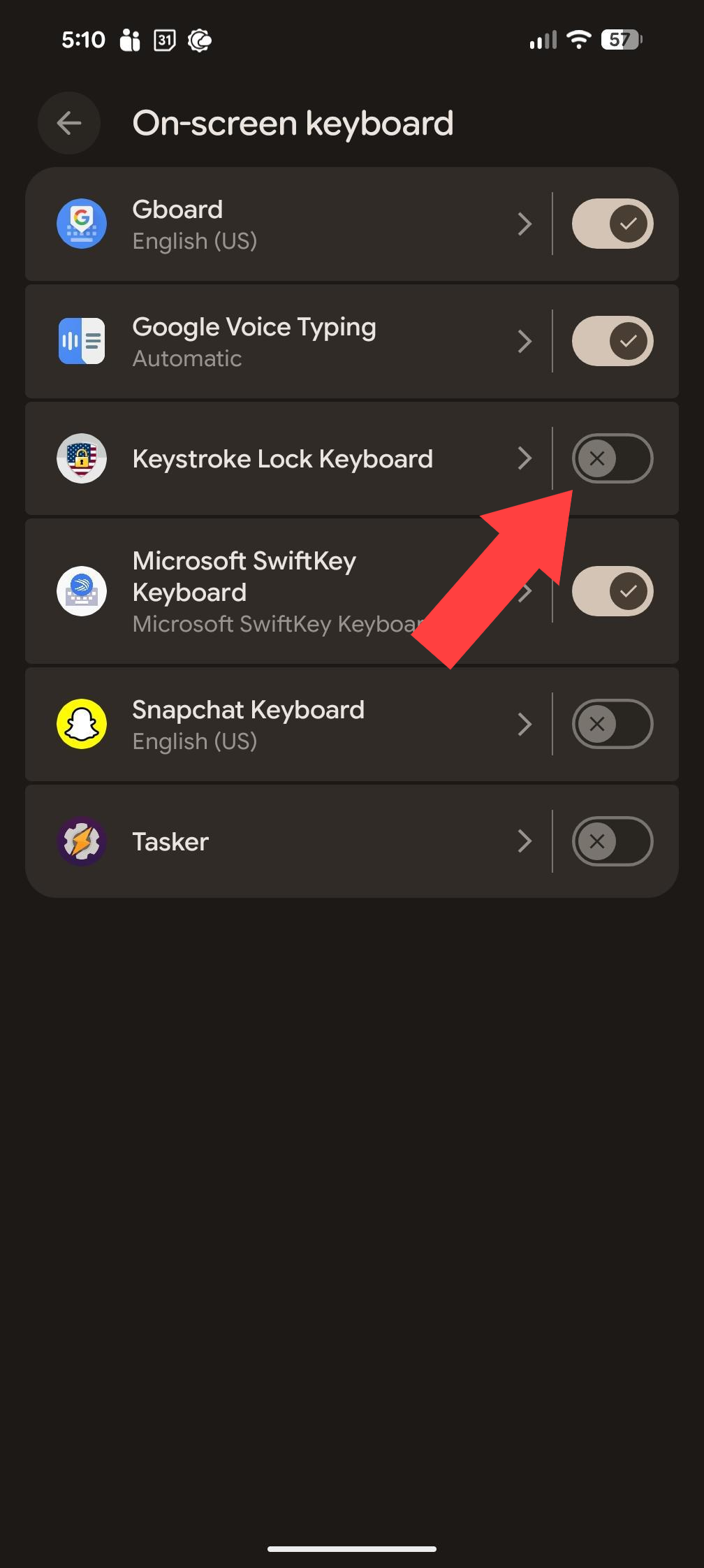
After clicking on the toggle to enable the Keystroke Lock keyboard, you will receive two pop-up messages that you must click OK to accept.
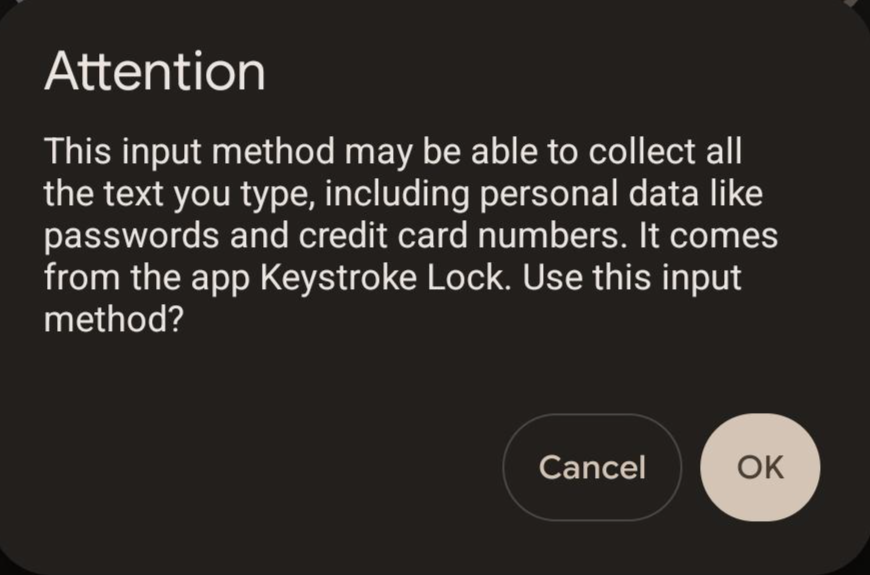
and then:
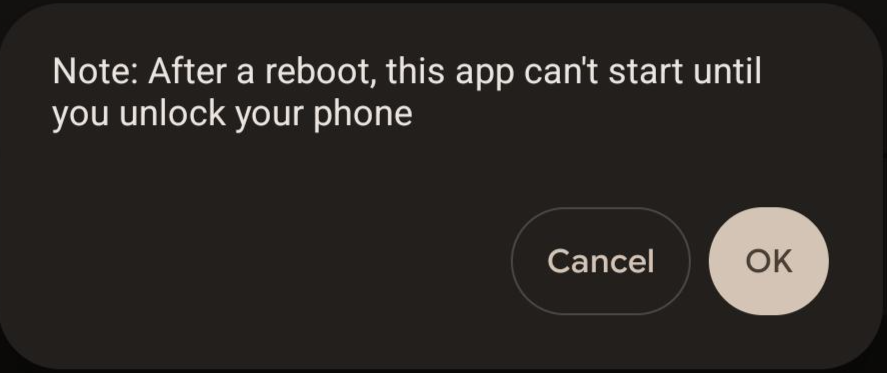
Finally, go back to the Keystroke Lock app and if you are still in the instructions screen, hit the blue back button in the bottom left. This will bring you to the main screen where you should now see 2 green checkmarks, meaning Keystroke Lock is fully setup and ready for use.
.jpeg)
Switch to the Keystroke Lock keyboard
To switch between keyboards in order to use the Keystroke Lock keyboard, follow this article: Switch between keyboards on Android