After you have logged into our customer portal, you will be able to view and manage your subscription.
The first screen you see after logging in will look something like this:
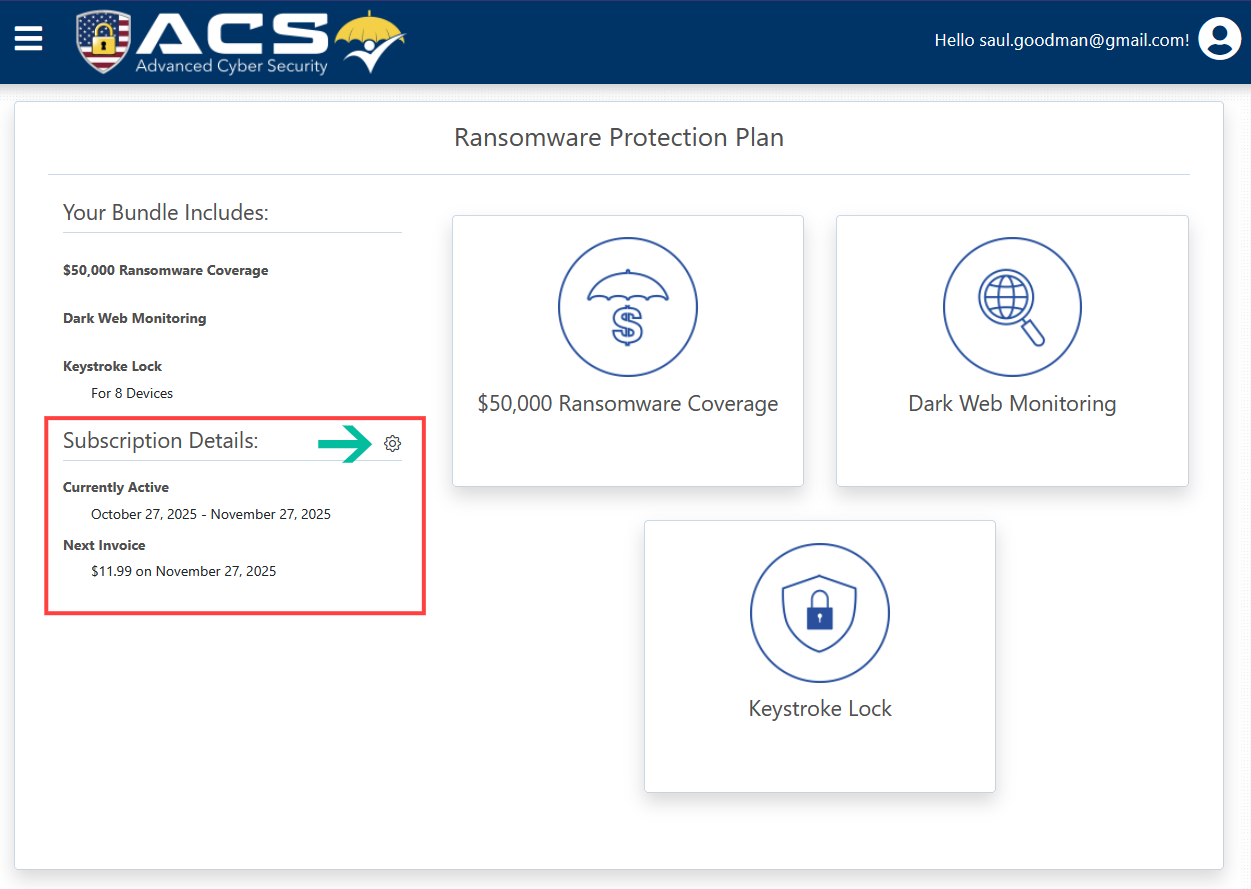
Right away you can see important billing details for your subscription, outlined in red above.
Subscription Details
To view the full details of your subscription billing, you can click on the gear icon (as pointed to by the green arrow in the image above) which will take you to a screen like this:
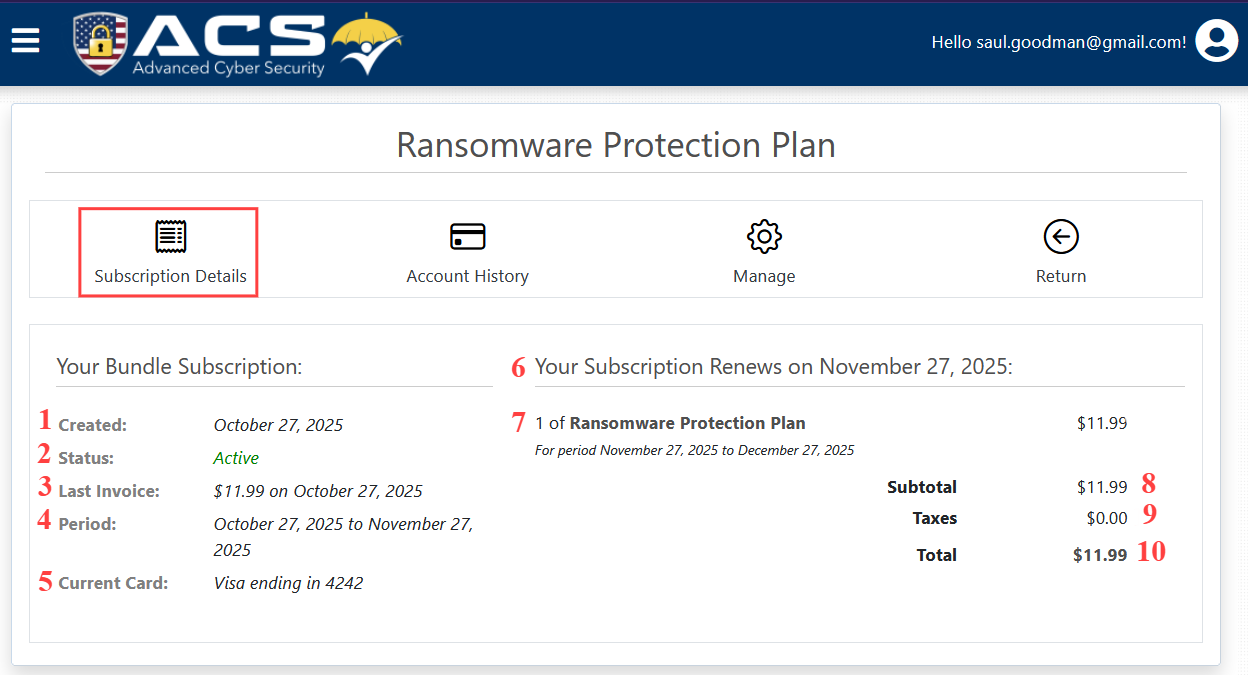
This screen provides a detailed view of your subscription including:
Created: The date your subscription was created.
Status: The status of your account.
Last Invoice: The amount and date of your last invoice.
Period: The current billing period.
This is the date range for which your last paid invoice provides you an active subscription.
Current Card: Details of the credit card currently being used for billing.
Only shows the card provider and the last 4 digits.
Renewal Date: The date you subscription bills and renews.
Plan billing details: Lists the quantity, names, and prices of any plans tied to your account.
Subtotal: The total price, before taxes, of the plan(s) listed above.
Taxes: The total taxes that will be added to subtotal.
Total: The total price of your plan(s) including taxes.
Account History
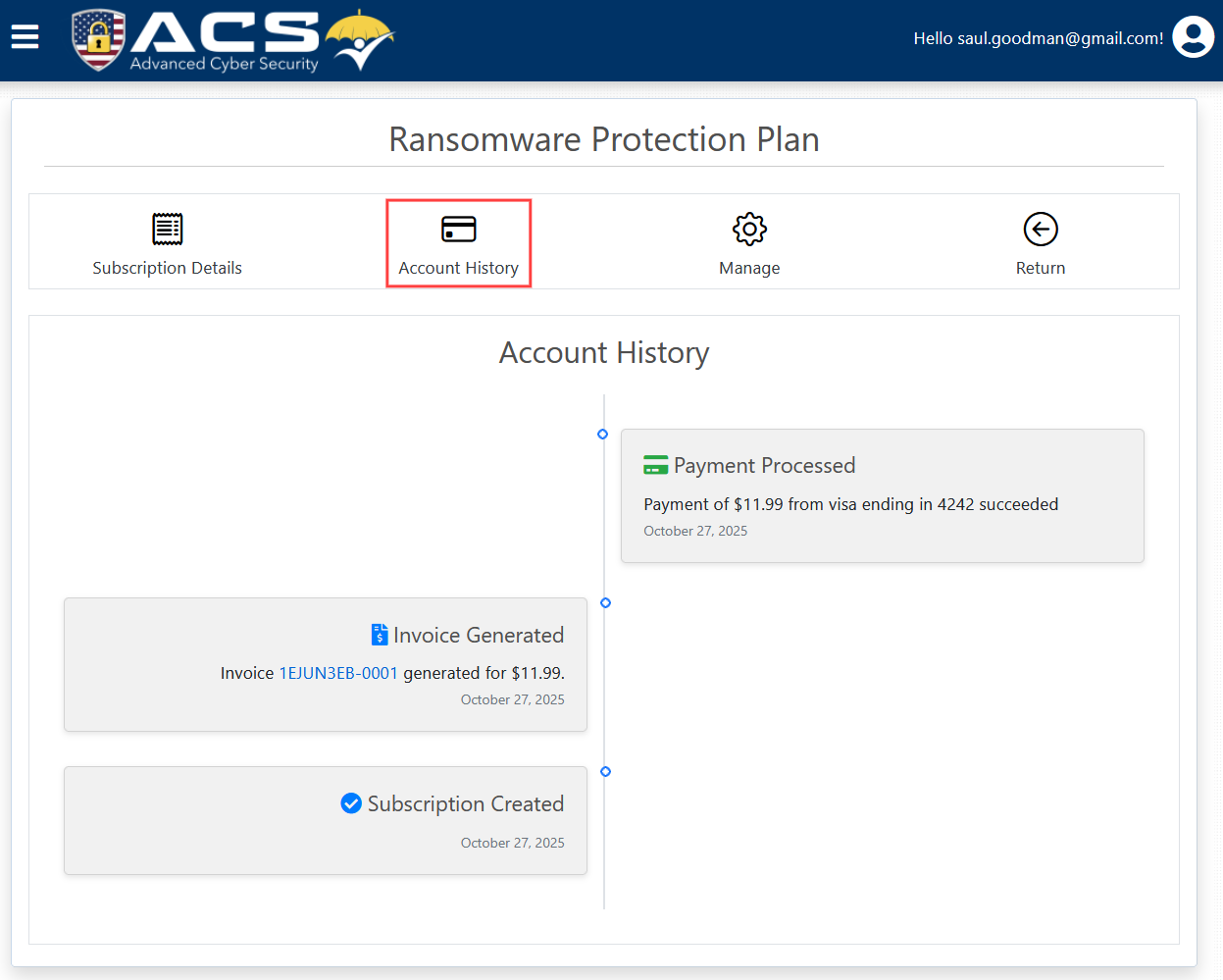
This section is a simple timeline of subscription. It shows your subscription history, including the creation date, invoices, and payments.
Previous Invoices
You can click the link in each invoice to view and/or download its full details.
Manage
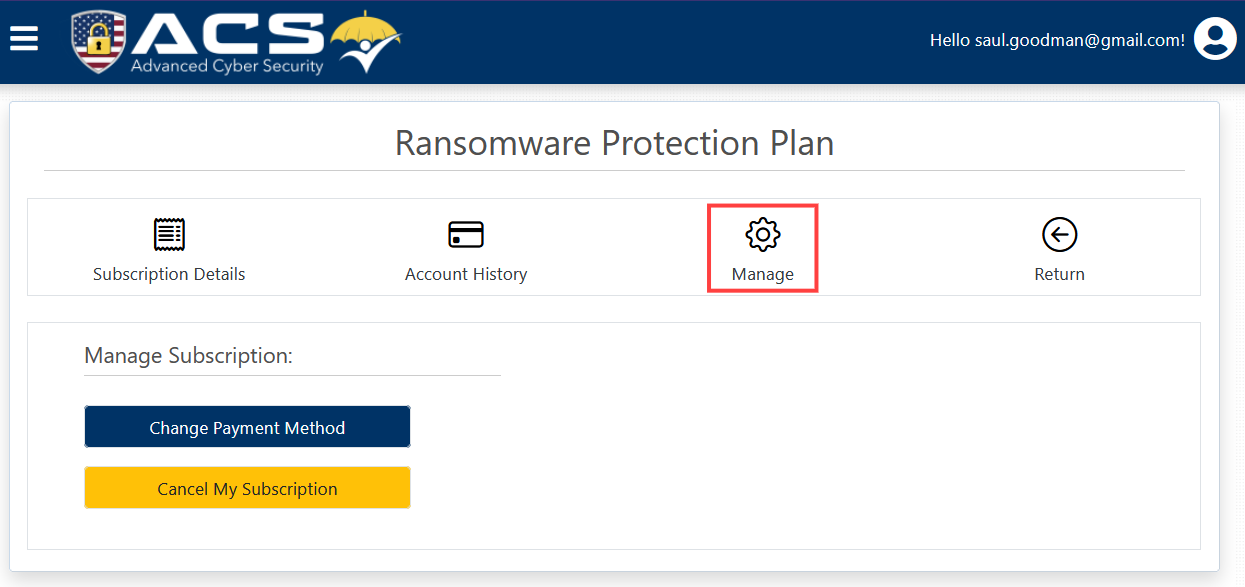
This section is where you can change or update your credit card details, and where you can cancel your subscription.
Update credit card
To update or change the credit card information used to pay for your subscription, click Change Payment Method, enter the new card information, then click Save Payment Method.
Cancel your subscription
To cancel your subscription, click Cancel My Subscription, then follow the on-screen instructions on the right to complete the cancellation. You will also receive an email from us confirming that the subscription has been cancelled.