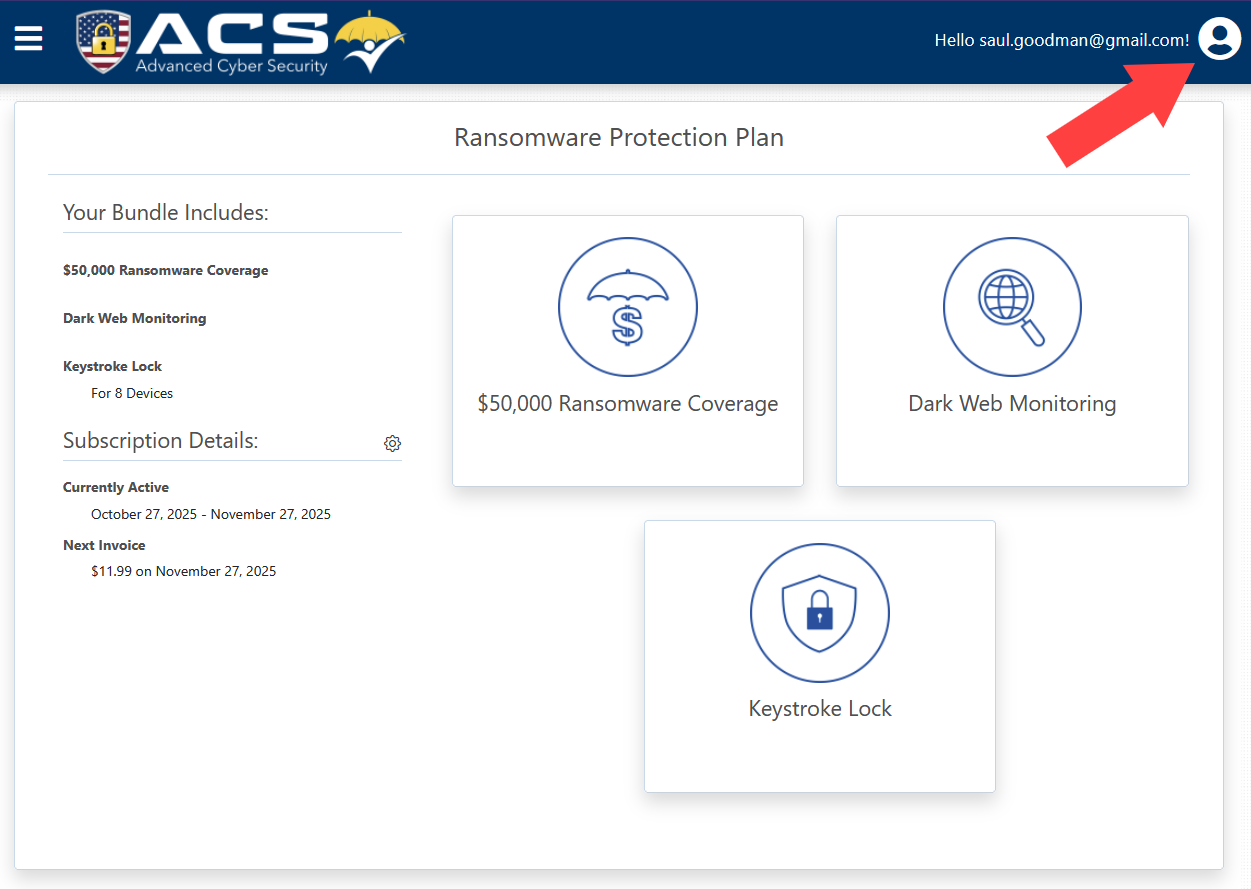
To manage your account settings, login to our customer portal, then click on the profile icon in the top right of the page.
 Profile
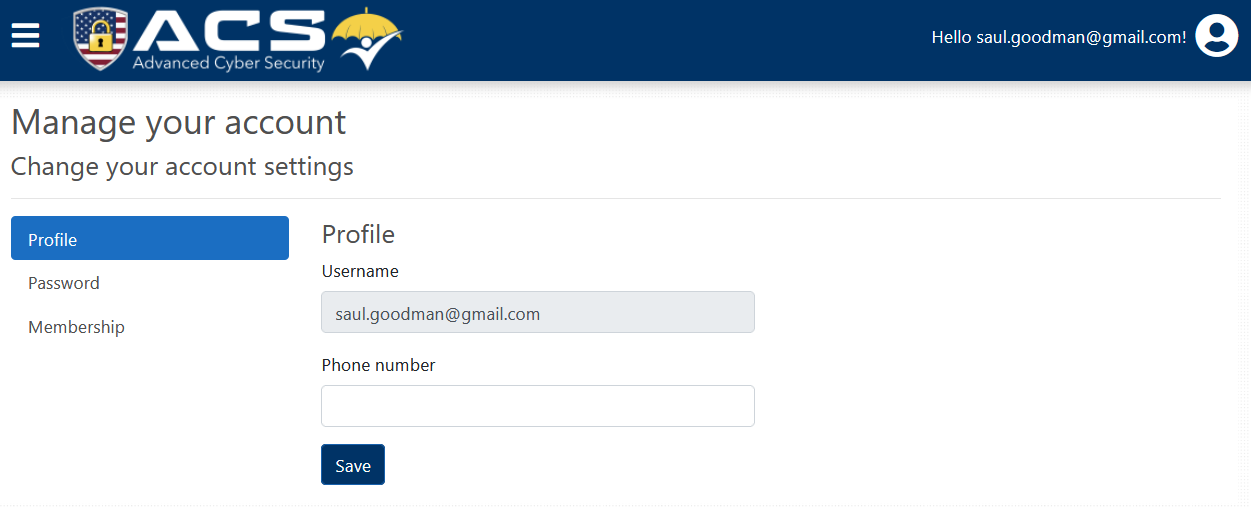
You will then see your account settings page which has 3 sections.
The first section is Profile and is where you can update details about yourself, the account owner.
Change email address/username
Please contact our support team to change your email address/username.
Password
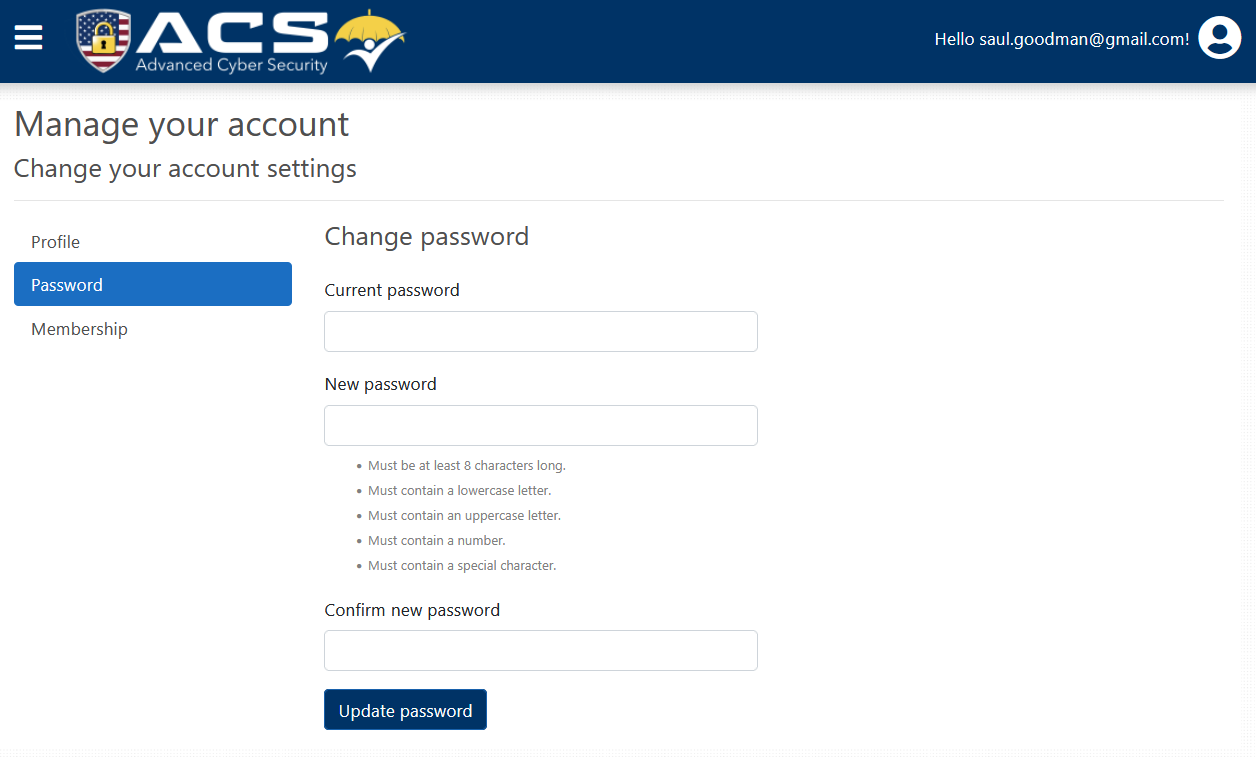
The next section, Password, is where you can change your password.
To change your password:
Enter your current password.
Enter a new password (that meets the complexity requirements).
Passwords requirements:
At least 8 characters in total.
At least 1 lowercase letter
At least 1 uppercase letter
At least 1 number
At least 1 special character
Enter the new password again which must exactly match.
Click Update password to save.
If the password update was successful, you will see this green message:

Notes
If you do not see the green success message mentioned above, there was a problem with one of the passwords you entered, and a message in red text will show up telling you what isn’t correct. Please fix the issue, then try clicking the Update password button again.
If you are unable to login to your account and need reset your password, please see: Forgot password
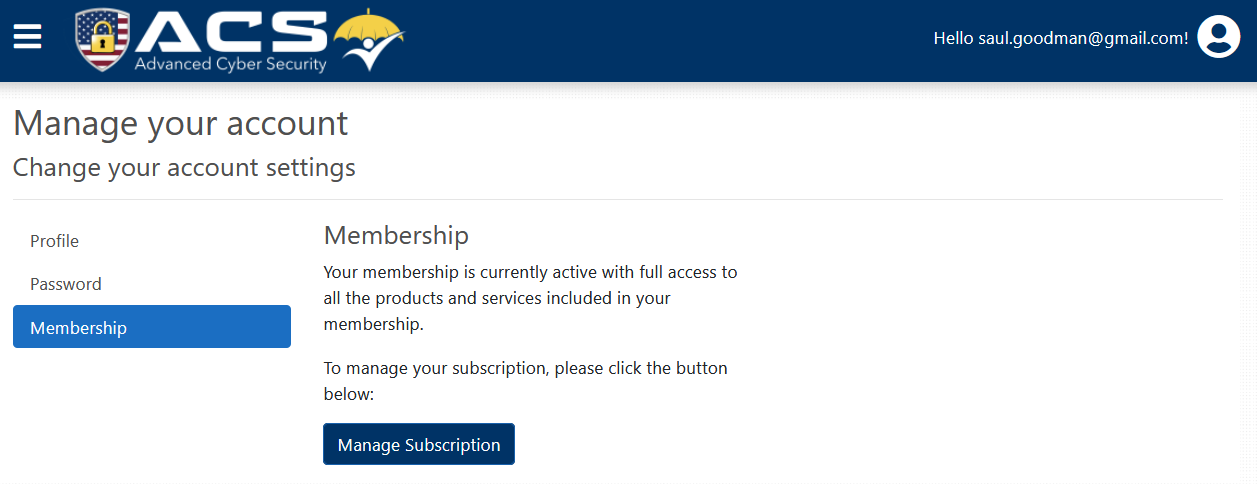
Membership
The last section, Membership, allows you to manage your subscription. Clicking the Manage Membership button here will take you to the same subscription management area described in Manage your subscription.