Open the app
Launch the EndpointLock user interface in one of these ways:
Double-click on the EndpointLock desktop icon
Use the Windows search bar to search “EndpointLock”
Use the Start Menu, then click All and find EndpointLock
Double-click our shield icon in your system tray
Note:
If you don’t see the EndpointLock tray icon, please refer to this article: Finding the EndpointLock tray icon
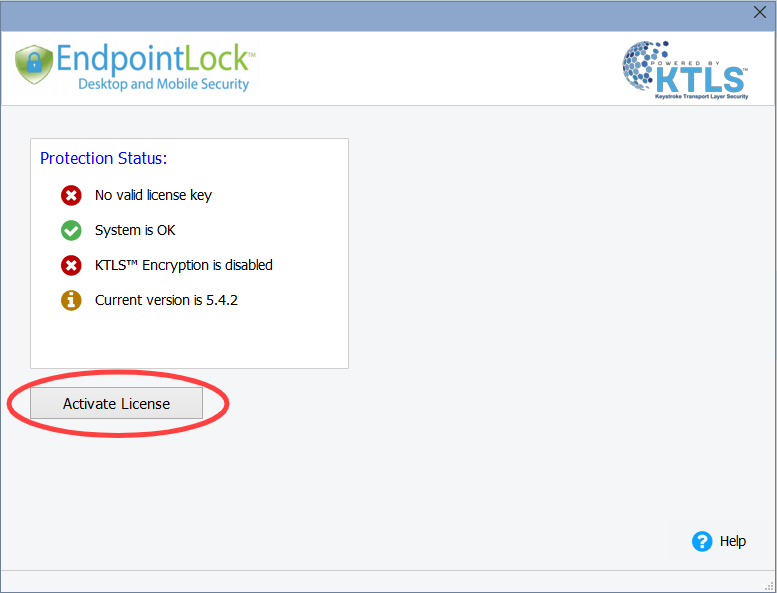
Click Activate License
In EndpointLock, click “Activate License”:
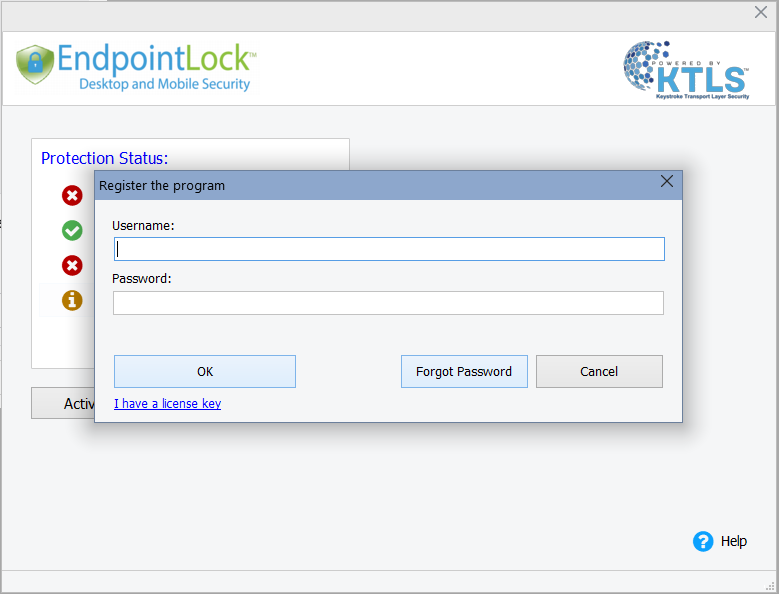
Enter your credentials
Enter the username (your email) and password you created in our customer portal, then click OK.
Note:
Alternatively, you can activate with license key by clicking the "I have a license key" text. The license key is not case sensitive and can be entered with or without the dashes.
Activation Success
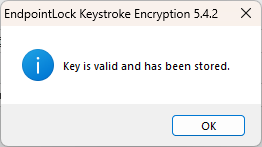
If your activation worked, you should see this message:
After clicking OK, EndpointLock should now show all green check marks:
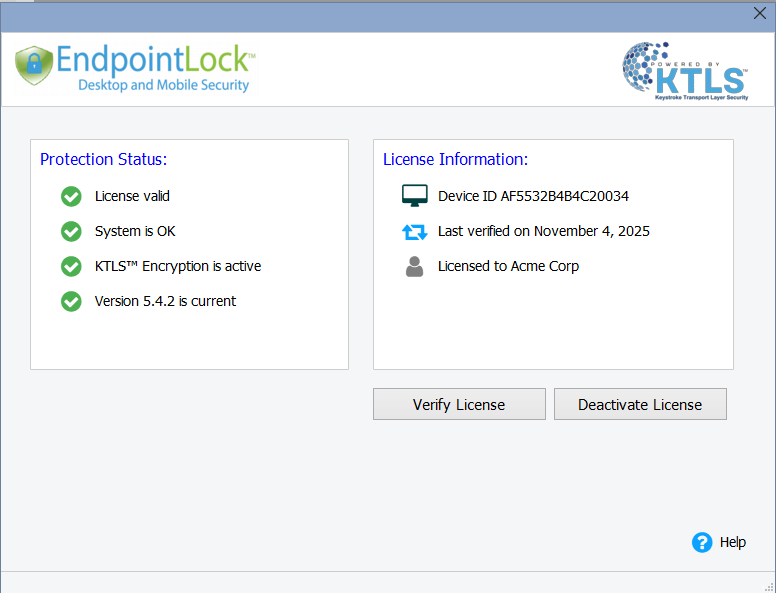
That's it! EndpointLock is now active and protecting your keystrokes.
Activation Issues
If you are having a problem activating, please read this article: Activation Help
Other useful articles: