On most Android devices, whether you are using the EndpointLock encrypted keyboard or any other keyboard, you'll see a small keyboard icon in the bottom right hand corner of the screen whenever the keyboard is active. Just tap said icon to open your keyboard list:
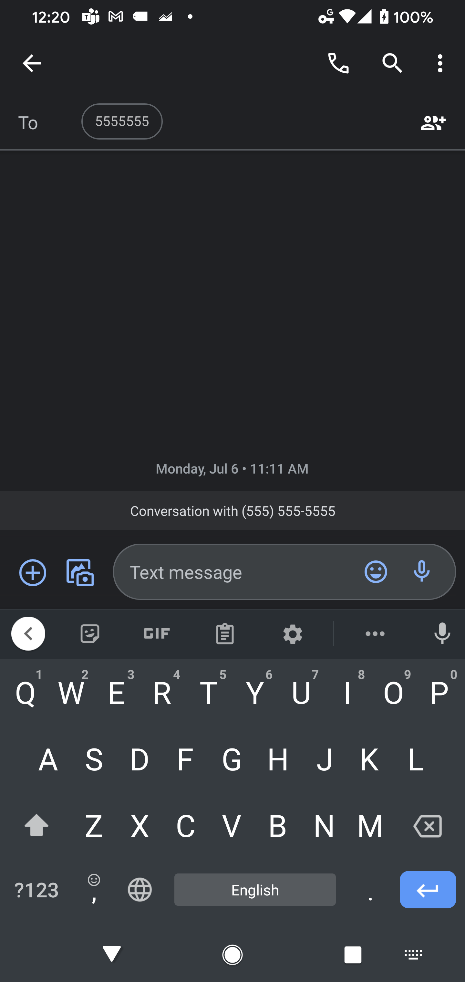 Default Keyboard
 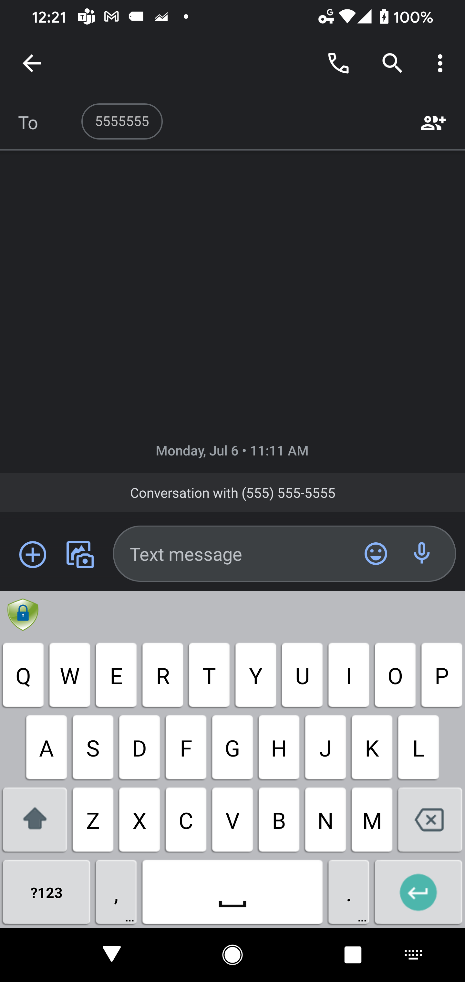 EndpointLock Keyboard
After tapping the icon you will see this menu, allowing you to switch between different keyboards:
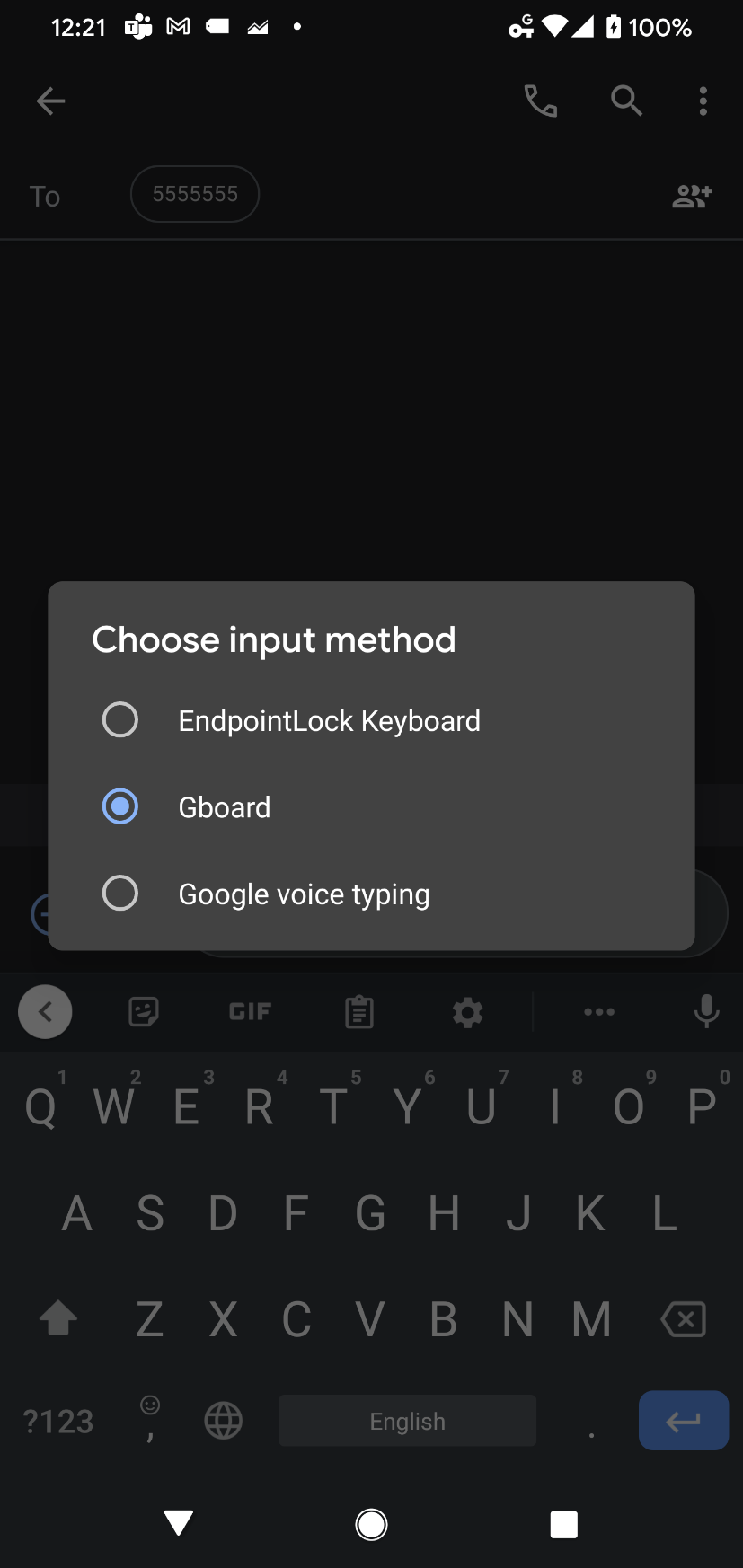
Note for Samsung phones:
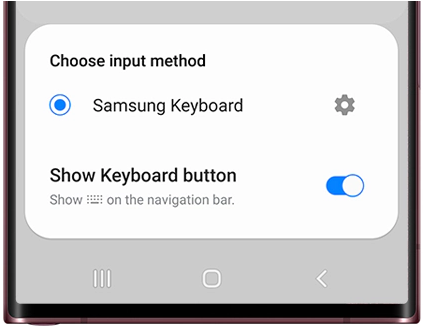
If this icon is not visible when you have a keyboard open, you can enable it in your settings:
- Open your Settings app.
- Tap on General Management.
- Tap on Keyboard list and default.
- Make sure the option for Show Keyboard button is enabled, like in the image below.
* If you still do not see the keyboard switch icon, you may have to disable the Samsung keyboard voice input option for it to show. You can do this by: Settings>General management>Samsung Keyboard settings>Voice input>None
** On some older Android devices this icon isn't present. In this case, you can switch keyboards by pulling down the notification bar whenever a keyboard is active.