The EndpointLock system tray “shield” icon  serves as a status indicator of the current operational state of EndpointLock keystroke encryption.
The possible operational states of EndpointLock are listed below:
Active: When the EndpointLock shield is blue the keystroke encryption is currently active.

Disabled: When the EndpointLock shield is red the keystroke encryption is currently disabled.

will launch the EndpointLock user interface.You can also right-click the EndpointLock system tray shield iconto access the EndpointLock system tray menu which is seen and explained below:
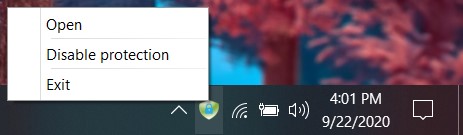 Encryption Enabled (Blue Lock)
 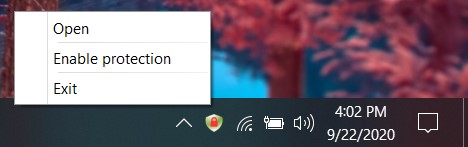 Encryption Disabled (Red Lock)
 Tray Menu Options Explained
Open: This will launch the EndpointLock’s user interface.
Enable protection: Clicking this option will enable EndpointLock’s keystroke encryption.
Disable protection: Clicking this option will disable keystroke encryption for all programs and processes.
Exit: This allows you to immediately quit the EndpointLock application from running. If EndpointLock exited in this manner, you must manually relaunch the EndpointLock application or restart your computer.