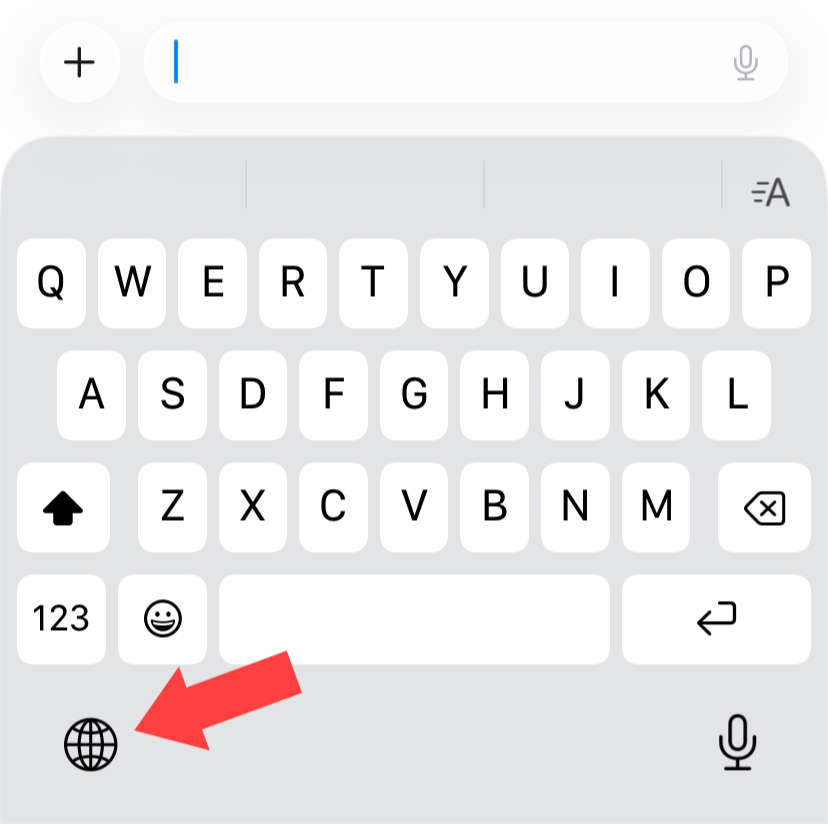
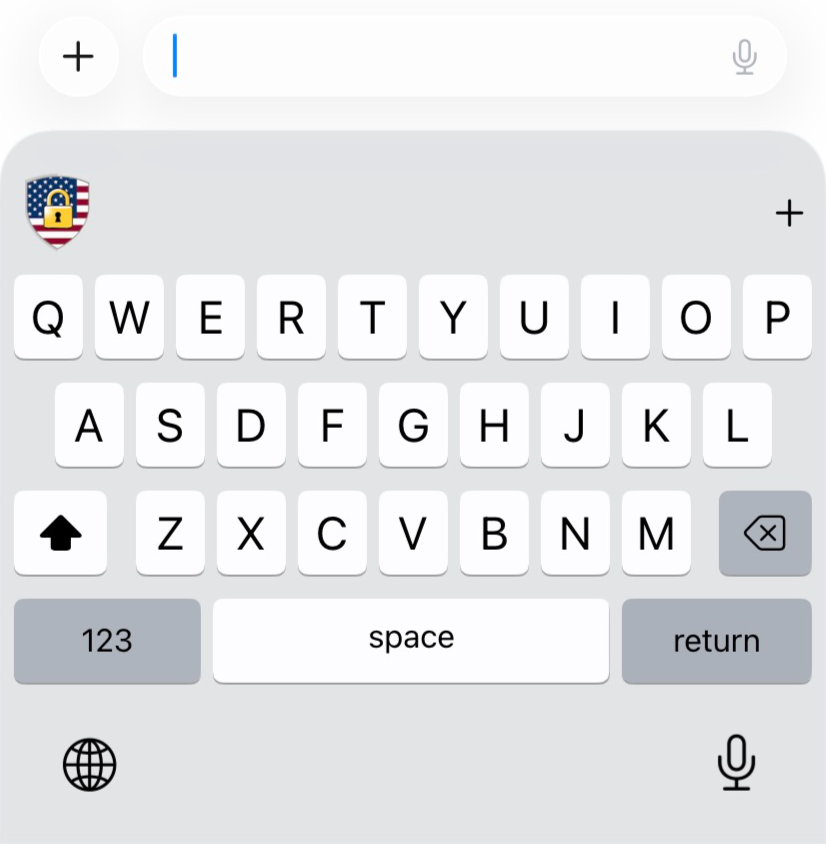
You can switch between the Keystroke Lock keyboard and your phone’s other keyboards by tapping on the "Globe" key (which is located on the bottom left of your native keyboard) until your Keystroke Lock shield logo appears.
Alternatively, you can simply press and hold the “Globe” key to reveal all of your keyboard options, then select the Keystroke Lock Keyboard.
This is the default iOS keyboard (notice the red arrow pointing to the globe key):
This the Keystroke Lock keyboard (notice the shield logo):
Important!
In certain situations you might not be able to use the Keystroke Lock keyboard:
If the app you’re using doesn’t allow third-party keyboards.
If you’re typing in a secure text field that shows characters as dots (like a password entry field). This is normal behavior.