Step-by-step instructions
Follow the detailed steps below to install on Windows.
Download
Start by downloading the EndpointLock installer from our download page: https://portal.advancedcybersecurity.com/keystrokelock/download
Run
Go to your Downloads folder and find the file you just downloaded, which will be named starting with KSLSetup (Ex. KSLSetup-5.4.3.exe), the double-click to run it.
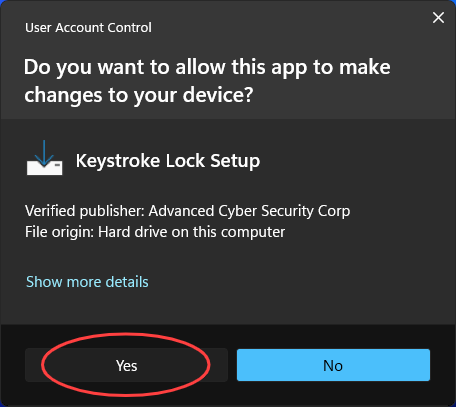
Allow app to make changes
Click “Yes” to allow Windows to install our software.
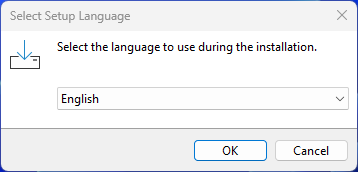
Choose Language
Click “OK” to install with English as the setup language.
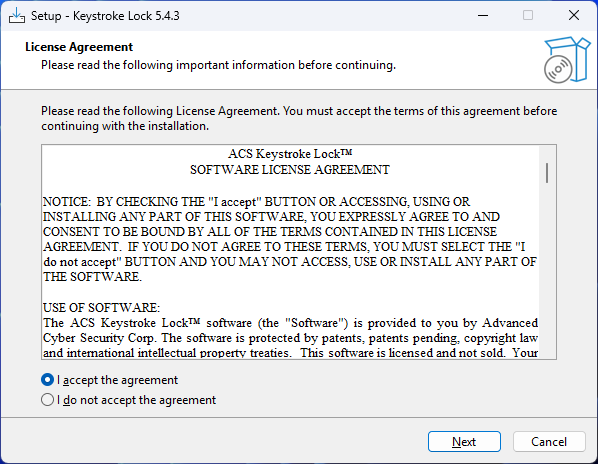
Accept License Agreement
Select the button next to “I accept the agreement” and then click “Next” to accept the License Agreement.
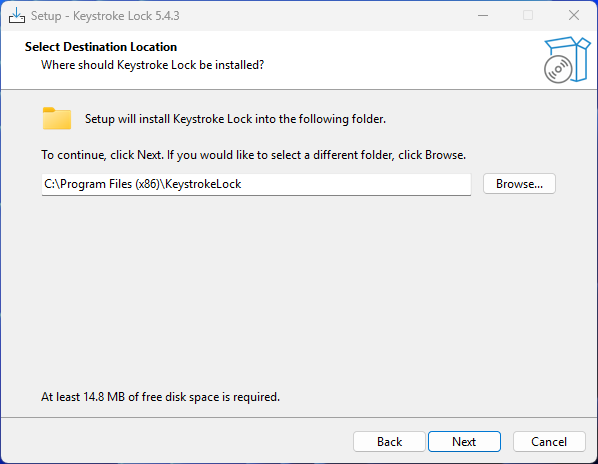
Set the install location
Click “Next” to accept the default install location or set a different location by clicking “Browse”.
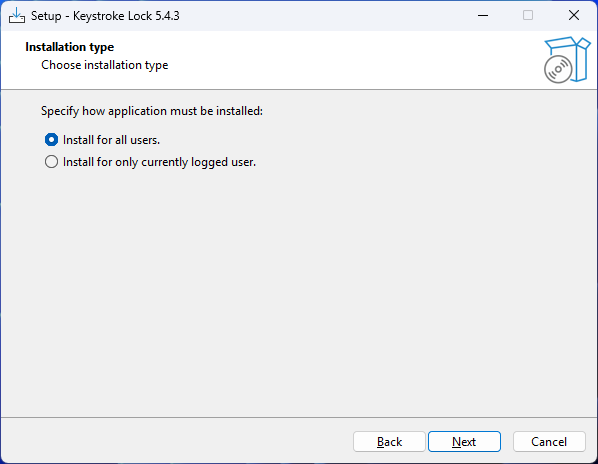
Choose installation type
Click “Next” to install for all users.
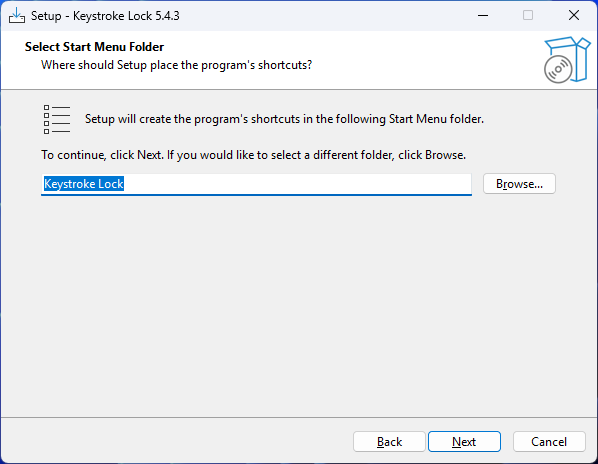
Set the Start Menu folder
Click “Next” to continue with the default Start Menu folder.
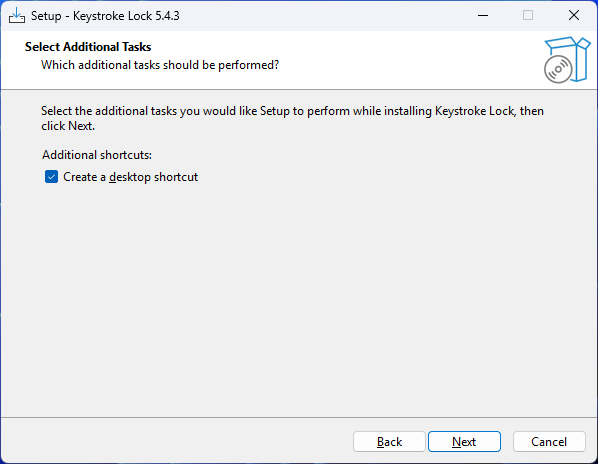
Choose to create a desktop icon
Leave the box checked to create a desktop icon or uncheck the box to not create a desktop icon. Click “Next” to continue.
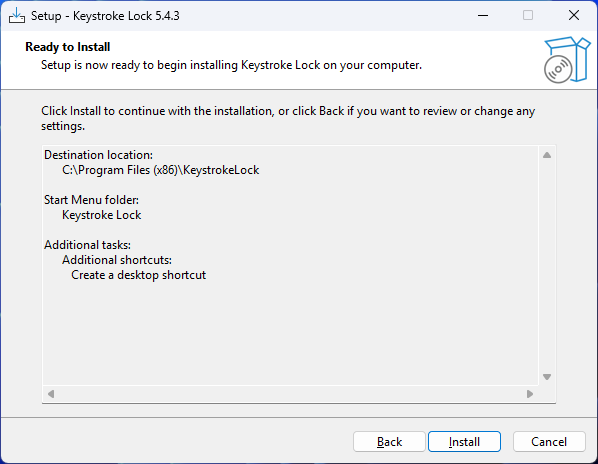
Install
Click “Install” and the EndpointLock software will install to your computer.
Reboot your computer
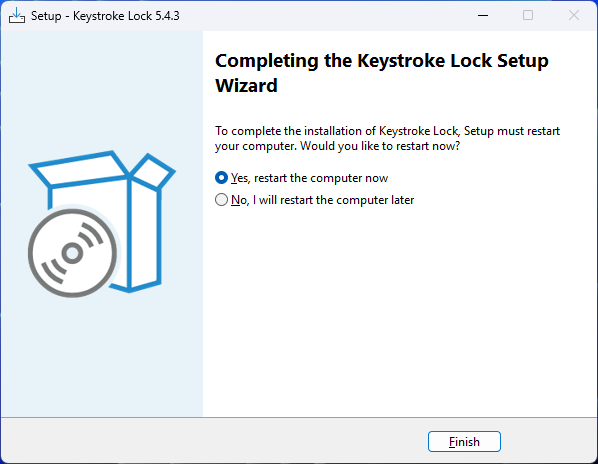
Before you can use EndpointLock and to complete its installation, you must reboot your computer. Please save and close any running applications, then click “Finish” to complete the installation and restart your computer.
Important Note
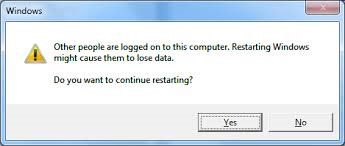
If another user is currently also logged into your computer you may receive a message similar to the one on the below when restarting. It is typically OK to restart anyway but it’s always best to first log out of the other user’s account before restarting.
Activate EndpointLock
After your computer reboots and you login to Windows again, you need to activate EndpointLock. Please follow these instructions: